> ## Documentation Index
> Fetch the complete documentation index at: https://vital-mintlify-83d472bf.mintlify.site/llms.txt
> Use this file to discover all available pages before exploring further.
# MyFitnessPal
> Connect MyFitnessPal accounts to Junction by configuring diary sharing with the required locked with key privacy setting.
## Connecting MyFitnessPal to Junction
You can now link MyFitnessPal accounts to Junction! You can do this with the Junction Link Widget or programmatically like other [password](/api-reference/link/link-password-provider) providers.
## Before Connecting
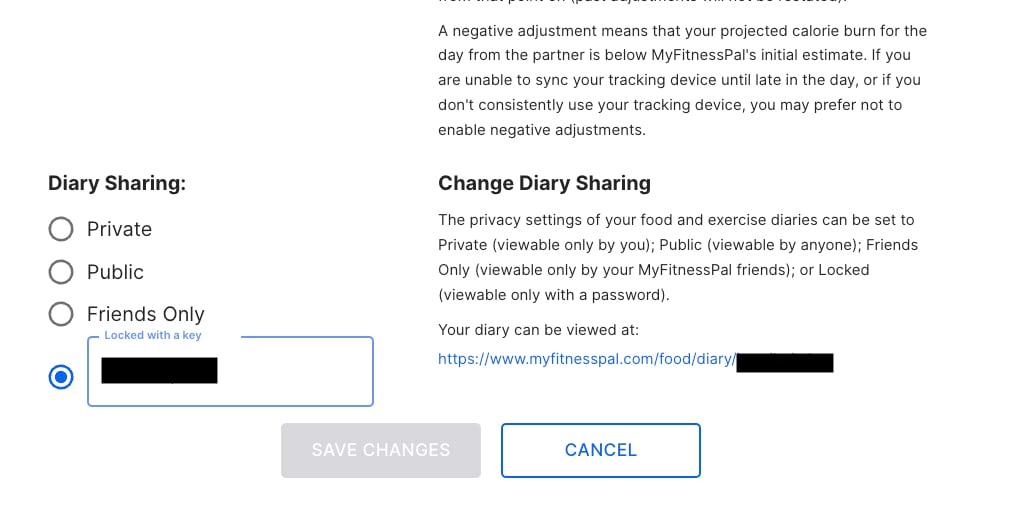
You can share your MyFitnessPal diary with Junction by locking your diary with a key.
* Go to [your diary settings](https://www.myfitnesspal.com/account/diary-settings) and click **locked with key**.
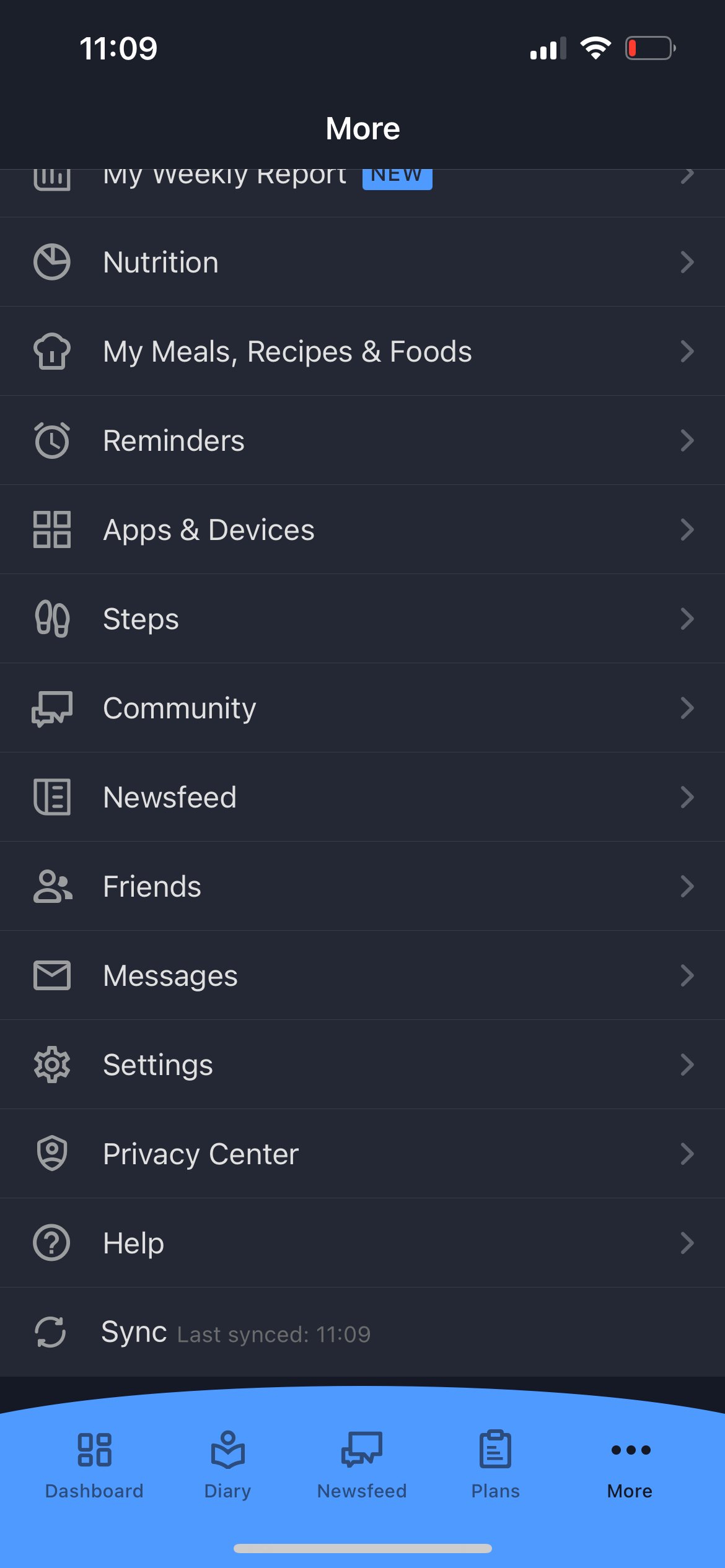
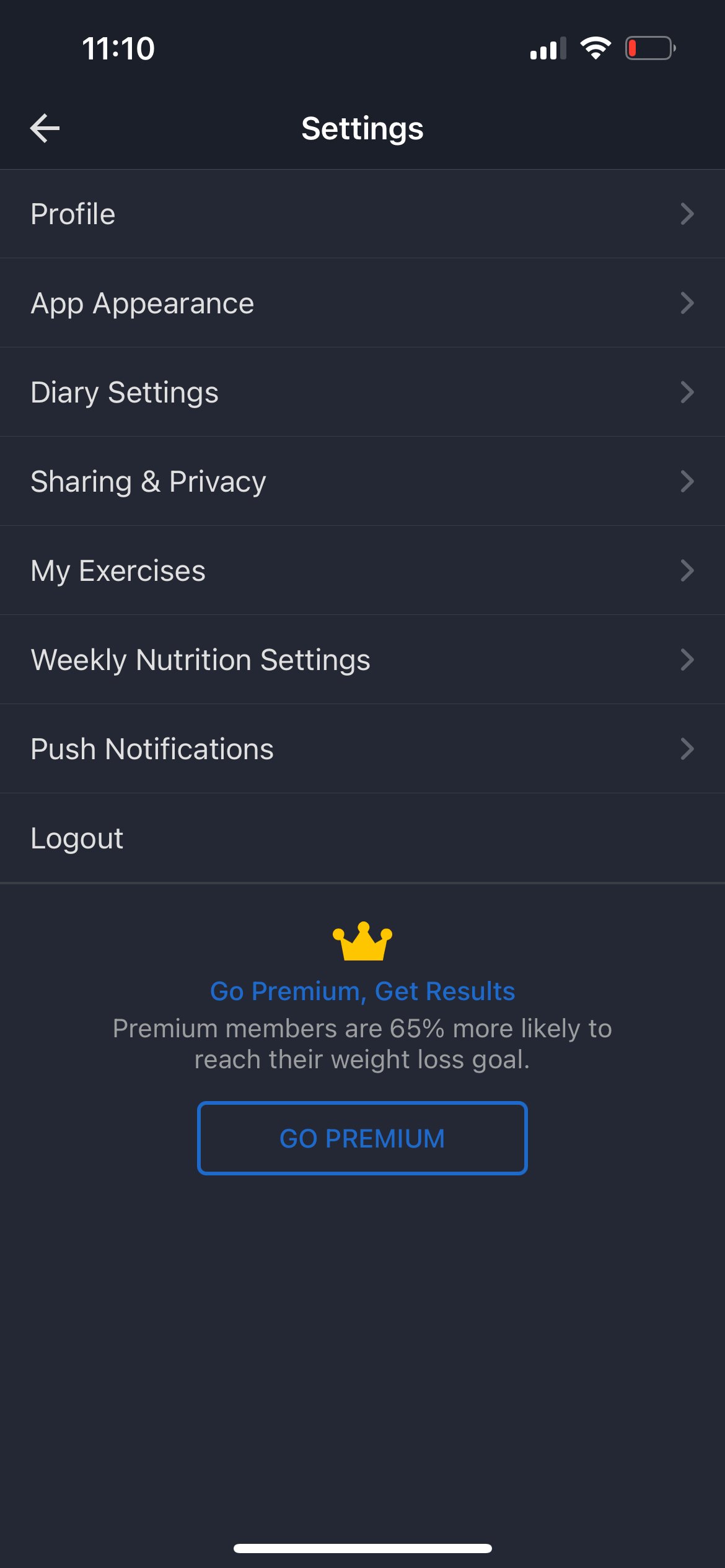
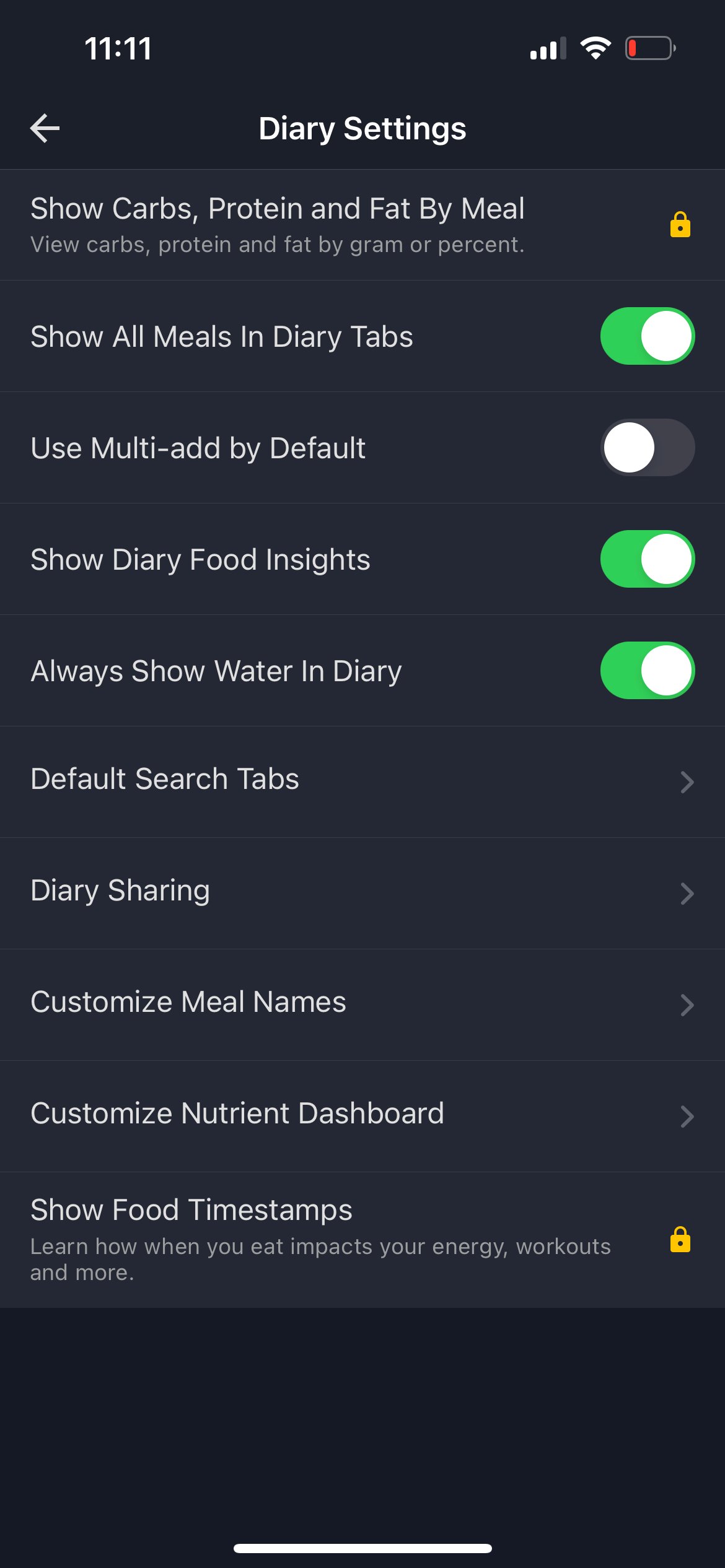
On mobile, head to *MyFitnessPal > More > Settings > Diary Settings > Diary Sharing*.
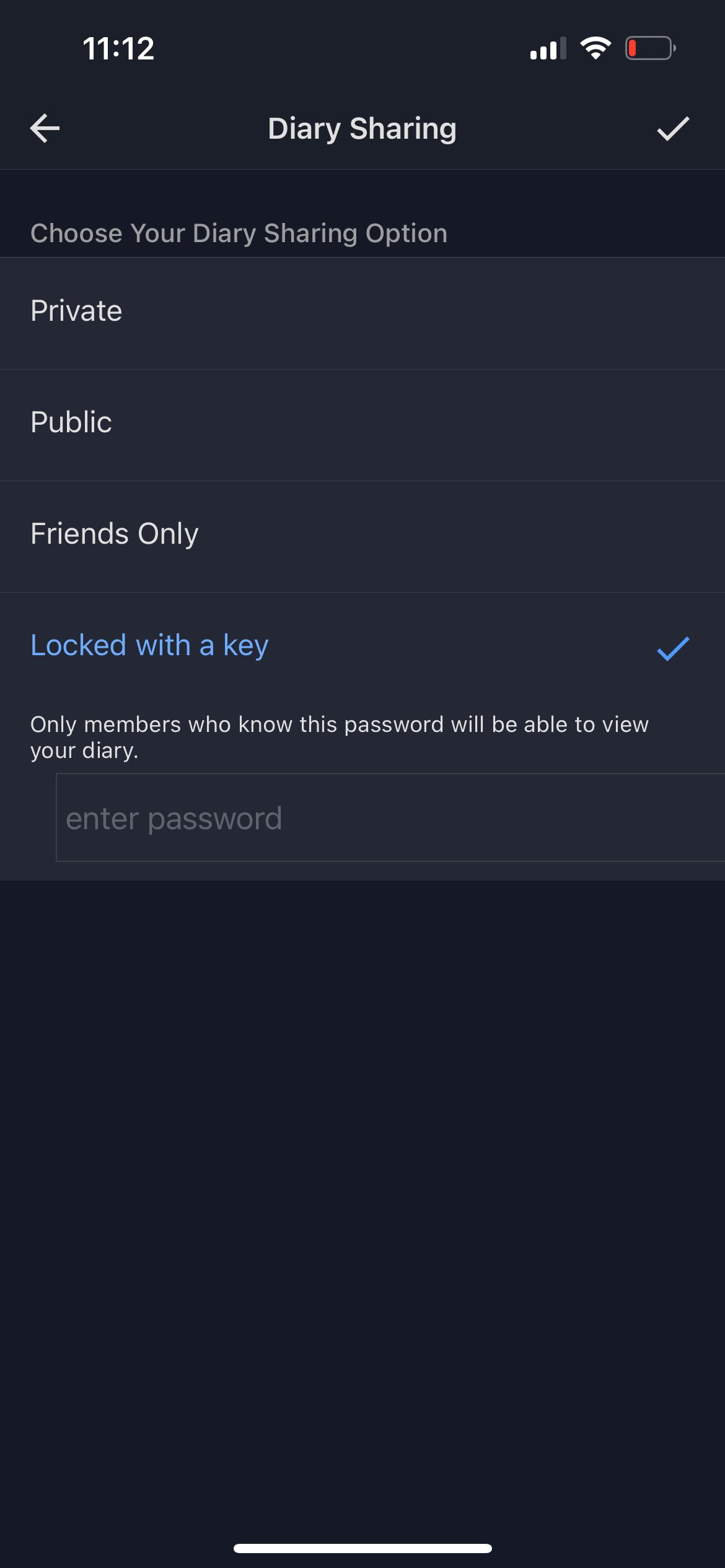 * Pick a key of your choice and save your changes.
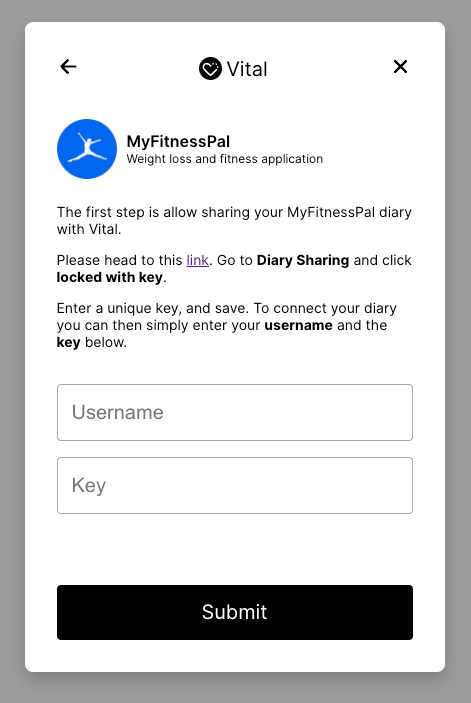
You can now use the key and your MyFitnessPal username when linking with Junction via the widget or programmatically.
## Junction Widget
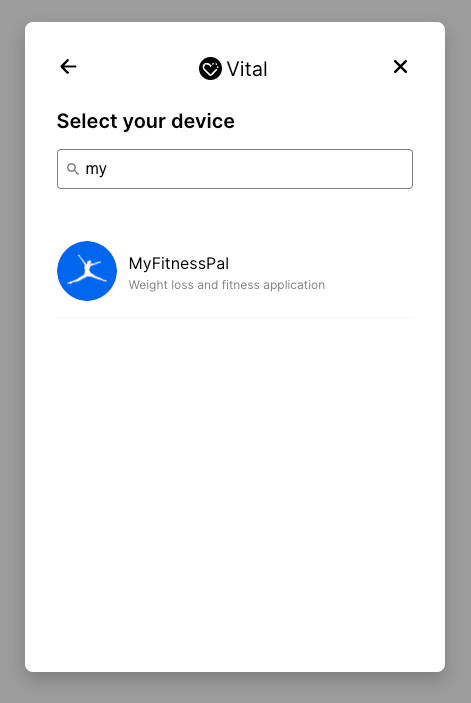
To connect your device with the *widget*, follow the link wizard and enter your username and key.
* Pick a key of your choice and save your changes.
You can now use the key and your MyFitnessPal username when linking with Junction via the widget or programmatically.
## Junction Widget
To connect your device with the *widget*, follow the link wizard and enter your username and key.
 Please note when linking programmatically that the **password** required in the payload
is the **locked key** you set in your [diary settings](https://www.myfitnesspal.com/account/diary-settings).
```bash cURL theme={null}
curl --request POST \
--url {{BASE_URL}}/v2/link/provider/password/my_fitness_pal \
--header 'Accept: application/json' \
--header 'Content-Type: application/json' \
--header 'x-vital-link-token: ' \
--data '
{
"username": "Your MyFitnessPal Username",
"password": "Your Diary Key"
}
'
```
```python Python theme={null}
user = client.Link.password_provider(
link_token, provider, your_username, your_diary_key
)
```
```typescript Javascript/Typescript theme={null}
const user = await client.Link.connectProvider(
linkToken,
provider,
yourUsername,
yourDiaryKey
);
```
## Webhooks
On successful connection, you will receive:
* [Connection created](/webhooks/introduction#connection-created-stage) webhook.
* [Historical Meal](/webhooks/introduction#historical-data-backfill-stage) webhook, implying that the last *2 weeks* of data are fetched successfully.
* [Daily webhooks](/webhooks/introduction#incremental-data-stage) `daily.data.meal.created` and `daily.data.meal.updated` are issued, as new or more up-to-date data becomes available.
Please note when linking programmatically that the **password** required in the payload
is the **locked key** you set in your [diary settings](https://www.myfitnesspal.com/account/diary-settings).
```bash cURL theme={null}
curl --request POST \
--url {{BASE_URL}}/v2/link/provider/password/my_fitness_pal \
--header 'Accept: application/json' \
--header 'Content-Type: application/json' \
--header 'x-vital-link-token: ' \
--data '
{
"username": "Your MyFitnessPal Username",
"password": "Your Diary Key"
}
'
```
```python Python theme={null}
user = client.Link.password_provider(
link_token, provider, your_username, your_diary_key
)
```
```typescript Javascript/Typescript theme={null}
const user = await client.Link.connectProvider(
linkToken,
provider,
yourUsername,
yourDiaryKey
);
```
## Webhooks
On successful connection, you will receive:
* [Connection created](/webhooks/introduction#connection-created-stage) webhook.
* [Historical Meal](/webhooks/introduction#historical-data-backfill-stage) webhook, implying that the last *2 weeks* of data are fetched successfully.
* [Daily webhooks](/webhooks/introduction#incremental-data-stage) `daily.data.meal.created` and `daily.data.meal.updated` are issued, as new or more up-to-date data becomes available.